
Deploy Nextcloud with S3-Compatible Object Storage
This guide shows how to deploy Nextcloud using the Snap package and
configure it to store files in an S3-compatible object storage
service.
Object storage replaces the default local disk storage used by
Nextcloud.
Prerequisites
Before starting, prepare the following:
- A Linux server (Ubuntu 14.04 or newer)
- Public internet access and a public IP
- SSH access to the server
- A domain name pointing to the server IP (optional)
Installation
Log in to the server and install the Snap packaging system if it is not
already installed.
sudo apt-get update
sudo apt-get install snappy   # Only required on Ubuntu versions below 16.04
sudo snap install nextcloud
The Snap package installs Nextcloud and its dependencies automatically.
Create the Administrator Account
After installation completes, create the Nextcloud administrator
account.
sudo nextcloud.manual-install <your_name> <password>
If successful, the command prints:
Successfully installed
Configure Trusted Domains
Nextcloud restricts which hostnames can access the web interface.
By default, only localhost is allowed.
Edit the configuration file:
/var/snap/nextcloud/3680/nextcloud/config/config.php
Example structure:
<?php
$CONFIG = array (
    // configuration options
);
Locate the trusted_domains section.
'trusted_domains' =>
array (
  0 => 'localhost',
),
Add your domain or public IP.
'trusted_domains' =>
array (
  0 => 'localhost',
  1 => 'example.com',
),
Save the file.
Wait about a minute for the configuration to reload.
Then open the Nextcloud login page in a browser:
http://example.com
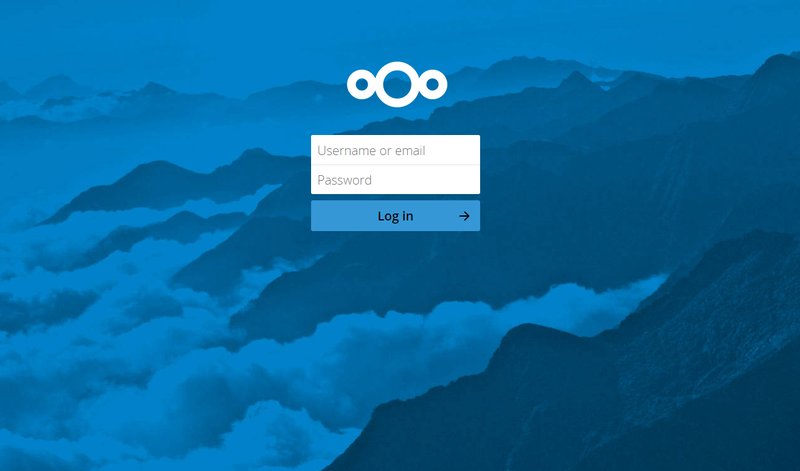
If the login page appears, the installation is working.
Log in with the administrator account created earlier.
Nextcloud Clients
Nextcloud provides official clients for:
- Linux
- Windows
- macOS
- Android
- iOS
Download them from the official Nextcloud website and connect them to
your server.
Default Storage Behavior
By default, Nextcloud stores files on the server's local disk.
Example data directory:
/var/snap/nextcloud/common/nextcloud/data
Local storage works but has limitations:
- Storage capacity is limited to the server disk.
- Scaling requires resizing or migrating disks.
- Distributed deployments are harder.
Object storage solves these problems.
Configure S3 Object Storage
Nextcloud supports S3-compatible object storage.
Edit the same configuration file:
/var/snap/nextcloud/3680/nextcloud/config/config.php
Add the following configuration inside the $CONFIG array.
'objectstore' => array(
  'class' => 'OC\\Files\\ObjectStore\\S3',
  'arguments' => array(
    'bucket' => 'nextcloud',
    'autocreate' => true,
    'key' => 'EJ39ITYZEUH5BGWDRUFY',
    'secret' => 'M5MrXTRjkyMaxXPe2FRXMTfTfbKEnZCu+7uRTVSj',
    'hostname' => 'example.com',
    'port' => 1234,
    'use_ssl' => true,
    'region' => 'optional',
    'use_path_style' => true
  ),
),
Parameter Overview
Parameter Description
bucket Target object storage bucket
autocreate Automatically create the bucket if it does not exist
key Access key ID
secret Access key secret
hostname S3 endpoint hostname
port S3 endpoint port
use_ssl Enable HTTPS
region Required by some providers
use_path_style Required for many S3-compatible services
You must first generate an access key and secret from your object
storage provider.
After configuration, Nextcloud reads and writes files directly to the
object storage backend.
Result
You now have:
- A self-hosted Nextcloud server
- Storage backed by S3-compatible object storage
- Remote access through your domain or IP
This architecture separates application compute from storage,
allowing easier scaling and cheaper storage options.
Member discussion: