
Developers frequently need to access remote servers to run commands or
transfer files.
The standard mechanism is SSH (Secure Shell).
Example SSH connection:
ssh username@example.com -p 22
This article describes a simple workflow for connecting to remote
servers and transferring files from a Linux machine (Ubuntu 18.04).
Mounting a Remote Directory
Ubuntu includes the Nautilus file browser (similar to Windows File
Explorer).
Mounted locations appear in the left sidebar alongside bookmarks and
local drives.
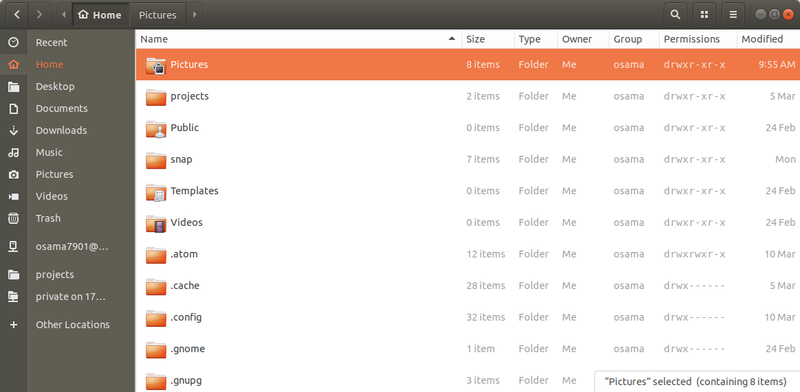
To mount a remote directory:
- Open Nautilus.
- Select Other Locations (bottom of the sidebar).
- Use the Connect to Server field.
- Enter a connection string.
Example:
sftp://domain.com

Nautilus will prompt for authentication.
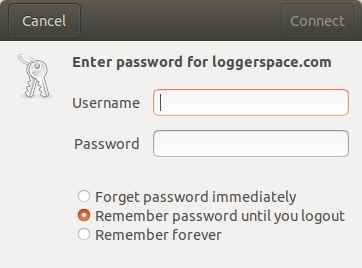
After authentication, the remote directory appears like a local
filesystem. You can:
- Browse files
- Copy files
- Edit files
- Drag and drop content
Supported Connection Protocols
Several protocols can be used when mounting remote directories. The most
common are SMB, FTP, and SFTP.
SMB (Samba)
Samba implements parts of the SMB protocol used by Windows file
sharing.
Example:
smb://example.com/path
Typical use cases:
- Accessing shared folders on a local network
- Mounting directories from a Windows machine
- Accessing local NAS or cloud drives
Limitations:
- Not encrypted by default
- Not suitable for public internet connections
- Requires a Samba server running on the remote machine
Use SMB primarily inside trusted local networks.
FTP
FTP is a traditional file transfer protocol.
Characteristics:
- Fast
- Widely supported
- No encryption
Security implications:
- Credentials are transmitted in plain text
- Vulnerable to man-in-the-middle attacks
- Unsafe on untrusted networks
Recommended usage:
- Internal networks only
- Controlled environments
FTP should not be used for internet-facing servers.
SFTP (SSH File Transfer Protocol)
SFTP runs on top of SSH and is the preferred method for remote file
access.
Characteristics:
- Encrypted
- Secure authentication
- Works over SSH infrastructure
Example connection string:
sftp://example.com
Typical use cases:
- Remote server management
- Secure file transfers over the internet
- Editing files directly on remote systems
Most modern tools support SFTP.
Third‑Party SSH Clients
Several graphical tools provide easier workflows for file transfers and
remote editing.
Common options:
FileZilla (Linux / macOS / Windows)
Features:
- SFTP support
- Drag‑and‑drop file transfer
- Directory comparison
- Queue management
Suitable for:
- General file transfer tasks
- Multi‑server workflows
WinSCP (Windows)
Features:
- SFTP and SCP support
- Integrated text editor
- Script automation
Often used alongside PuTTY, which provides the SSH terminal.
Summary
Typical workflow for remote server access:
- Use SSH for command-line access.
- Use SFTP for secure file transfers.
- Mount servers through Nautilus for quick file access.
- Use GUI clients like FileZilla or WinSCP for large transfers.
Avoid insecure protocols such as FTP or SMB over the internet
unless properly secured.
Member discussion: