
Git Remote Repositories, Fetching, and Collaboration
Remote Repositories
A remote repository is a Git repository hosted on another machine,
usually on the internet.
Developers push their changes to the remote so other contributors can
access them.
Common hosting platforms:
- GitHub
- GitLab
- Bitbucket
In practice, the only major difference between a local repository
and a remote repository is visibility.
A remote repository is accessible to other users over the network.
Repository Topology
The following diagram illustrates how local repositories interact with
remotes.
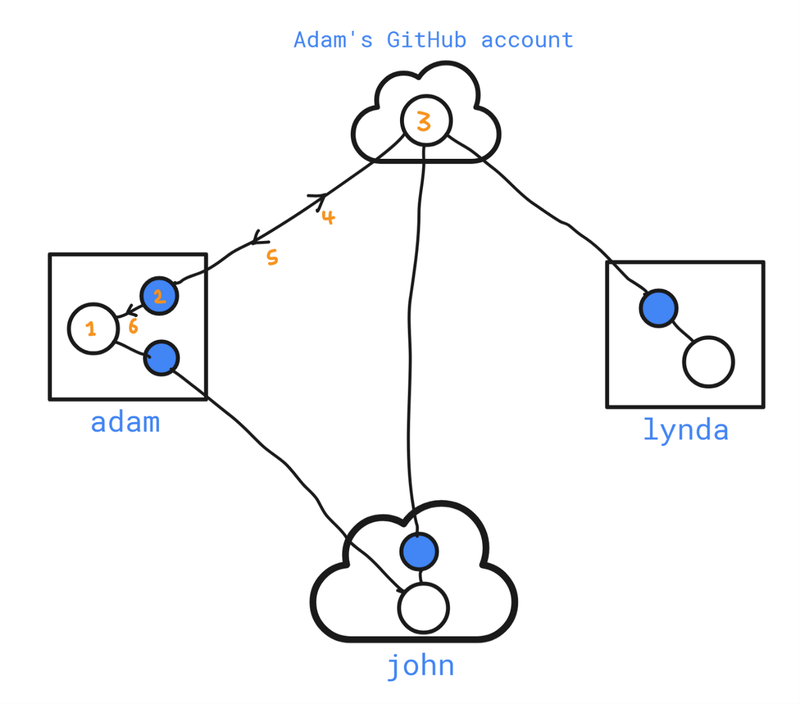
Diagram Legend
Shapes
- Square --- Local computer without a public IP
- Cloud --- Public server on the internet
- Empty circles --- Git repositories with three trees:
- Working tree
- Staging area
- Repository (commit history)
- Filled circles --- Local mirrors of remote repositories
- Lines --- Remotes (connections between repositories)
Numbered Elements
- Adam's local repository on his machine.
- A local mirror of the remote repository (updated via
fetch). - A remote repository hosted on GitHub.
- Push --- Upload local commits to the remote repository.
- Fetch --- Download commits from the remote repository into the
local mirror. - Merge --- Apply downloaded changes to the local repository.
Key Points
- A GitHub repository is just a normal Git repository.
- Git is distributed; there is no technical requirement for a
central server. - Adam's local repo and the GitHub repo are separate repositories.
- Contributors (e.g., John and Lynda) can clone the repository and
work independently. - Multiple remotes can be defined.
From this point forward, repository will be shortened to repo.
Push, Fetch, and Merge
Push
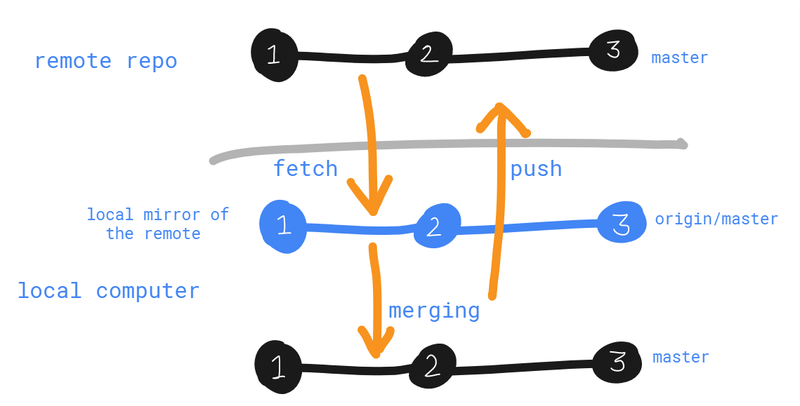
git push copies commits from a local repo to a remote repo.
When pushing:
- Git updates the remote repository.
- Git maintains a remote tracking branch locally.
Typical naming:
origin/<branch>
origin--- default remote name<branch>--- branch name on the remote
Remote References
originis a reference to the remote repository.- Remote definitions are stored inside:
<!-- -->
.git/config
Remote tracking branches are stored under:
.git/refs/remotes/
The local repository and the remote mirror share the same commits.
Only branch pointers differ.
Fetch
git fetch downloads new commits from the remote repository.
Effects:
- Updates remote tracking branches (e.g.,
origin/master) - Does not modify the working directory
- Does not update local branches
Example:
git fetch
After fetching:
origin/mastermoves forwardmasterremains unchanged
Merge
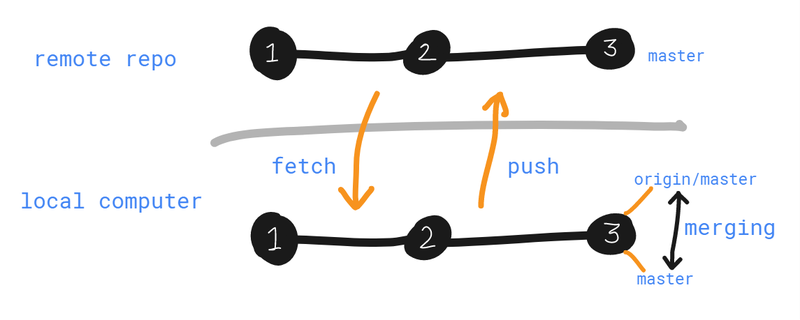
To apply fetched changes locally:
git merge origin/master
This merges the remote tracking branch into the local branch.
Example Workflow
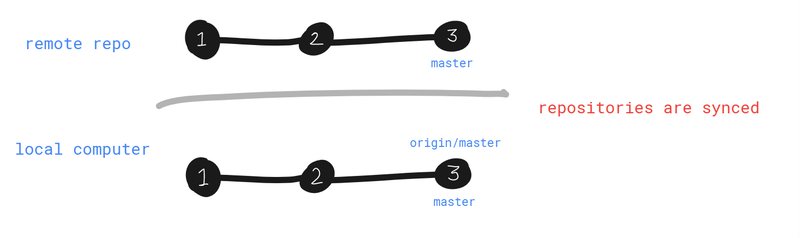
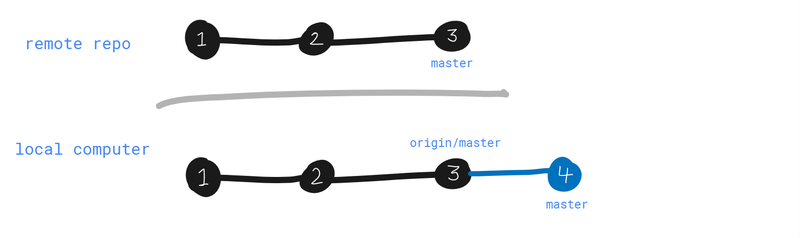
Initial state of local and remote repositories:
Local Commit
After making a commit locally:
mastermoves forwardorigin/masterremains unchanged
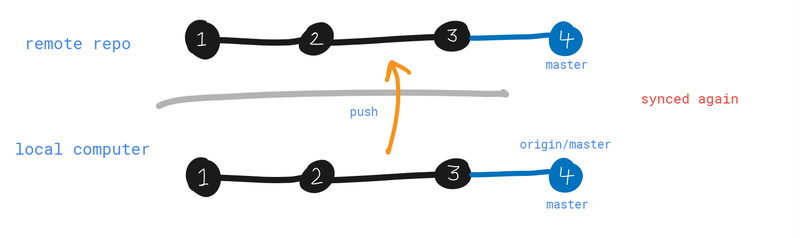
Push Changes
Running:
git push
Git performs:
- Fast‑forward merge of
origin/master - Upload of commits to the remote repository
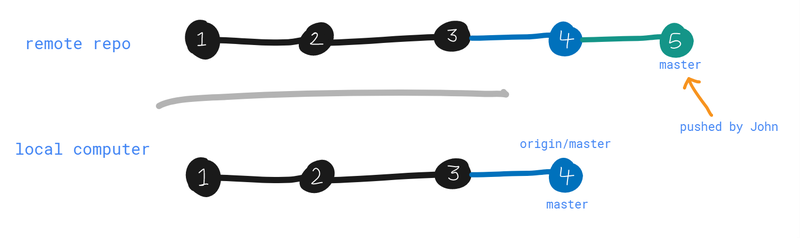
Remote Updated by Another Contributor
Another developer pushes commit 5.
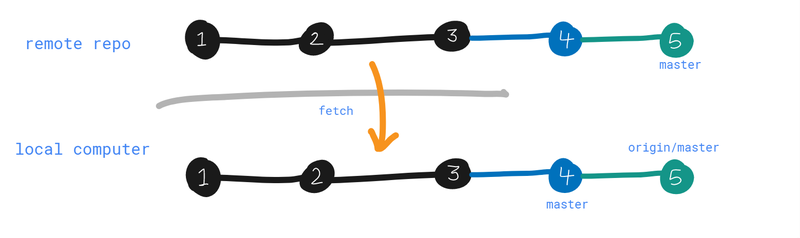
Fetch Remote Changes
Running:
git fetch
Updates:
origin/mastermoves forwardmasterremains unchanged
Merge Remote Changes
Apply updates locally:
git merge origin/master
Result:
- Local repo synchronized with remote.
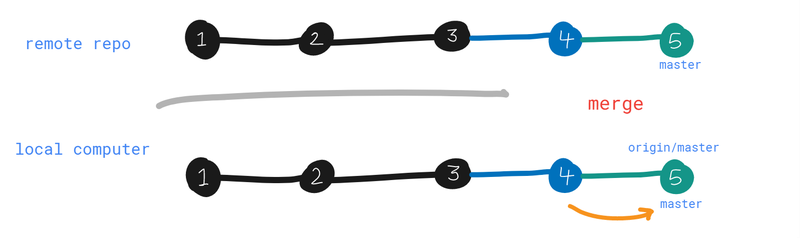
Remote tracking branches always attempt to reflect the state of the
remote server.
Connecting to a GitHub Repository
Add a remote:
git remote add origin <repo_uri>
List remotes:
git remote
Remove a remote:
git remote rm origin
Push a branch:
git push -u origin master
View remote branches:
git branch -r
View all branches:
git branch -a
Cloning a Repository
To start working on an existing project:
git clone <repo_uri>
Optional custom directory name:
git clone <repo_uri> project_dir
Effects:
- Creates a directory
- Initializes a local Git repo
- Downloads commit history
- Sets up tracking between
masterandorigin/master
Tracking Remote Branches
The master branch automatically tracks origin/master after cloning.
For new branches this must be configured manually.
Example branch:
new_feature
Option 1 --- Config File
Edit .git/config:
[branch "new_feature"]
    remote = origin
    merge = refs/heads/new_feature
Option 2 --- Git Config
git config branch.new_feature.remote origin
git config branch.new_feature.merge refs/heads/new_feature
Option 3 --- Push with Tracking
git push -u origin new_feature
This creates:
origin/new_feature
and sets up tracking.
Remote Branch Operations
Compare Local and Remote Branch
git diff origin/master..master
Fetch Rules
- Fetch before starting work
- Fetch before pushing
- Fetch frequently
Fetching:
- Requires internet connection
- Does not affect the working directory
- Is safe to run anytime
Pull
git pull combines two commands:
git fetch
git merge
Usage:
git pull
Advantages:
- Faster workflow
Disadvantages:
- Harder to debug merge problems
- Many developers misunderstand what it does
Creating Local Branches from Remote Branches
Suppose Lynda pushes a branch:
lyndas_branch
After fetching, the branch exists locally as:
origin/lyndas_branch
Create a local tracking branch.
Two‑step method
git branch lyndas_branch origin/lyndas_branch
git checkout lyndas_branch
One‑step method
git checkout -b lyndas_branch origin/lyndas_branch
Handling Push Rejections
If someone pushed new commits before you:
git push
may fail.
Resolution:
git fetch
git merge origin/master
git push
Deleting Remote Branches
Old Syntax
git push origin :branchX
Recommended Syntax
git push origin --delete branchX
GitHub Collaboration
GitHub hosts Git repositories and manages collaboration.
Repository Visibility
Public
- Anyone can clone the repository
- Only approved collaborators can push
Private
- Access restricted to selected users
Forking Workflow
Forking creates your own copy of a repository.
Process:
- Fork the repository.
- Clone your fork.
- Implement changes.
- Submit a pull request.
- Repository maintainers review and merge.
Example Collaboration Workflow
Joe's Workflow
git checkout master
git fetch
git merge origin/master
Create a feature branch:
git checkout -b feedback_form
Develop the feature:
git add feedback.html
git commit -m "Add customer feedback form"
Push branch:
git push -u origin feedback_form
Lynda's Workflow
Update repository:
git checkout master
git fetch
git merge origin/master
Checkout Joe's branch:
git checkout -b feedback_form origin/feedback_form
Review commits:
git log
git show <hash>
Make improvements:
git commit -am "Add tour selector to feedback form"
Push updates:
git push
Joe Syncs Changes
git fetch
git log -p feedback_form..origin/feedback_form
git merge origin/feedback_form
Merge feature into master:
git checkout master
git fetch
git merge origin/master
git merge feedback_form
git push
Git Aliases
Aliases shorten frequently used commands.
Example:
git config --global alias.st status
Usage:
git st
Useful Aliases
git config --global alias.co checkout
git config --global alias.ci commit
git config --global alias.br branch
git config --global alias.df diff
git config --global alias.lg "log -p"
git config --global alias.logg "log --graph --decorate --oneline --abbrev-commit --all"
Aliases can be defined in:
- Project config
- Global config (
~/.gitconfig) - System config
Member discussion: