
Git Commit References, History, Branching, and Stashing
Commit References
Git provides multiple ways to reference commits in the repository
history.
Common references:
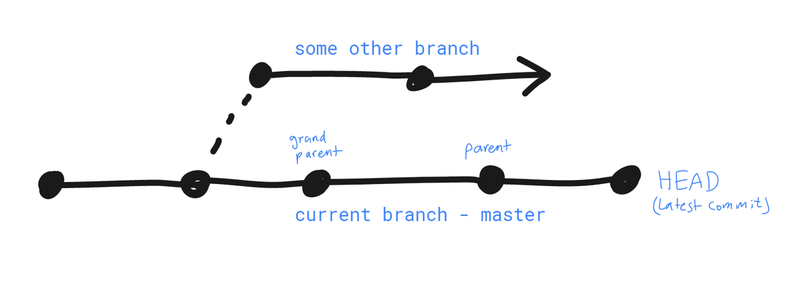
- HEAD --- the latest commit on the current branch
- Commit hash --- e.g.,
af4564 - Branch name --- e.g.,
master
Relative references:
- Parent commit:
HEAD^ - Grandparent:
HEAD^^ - Great‑grandparent:
HEAD^^^
Use ~ with a number to move further back:
HEAD~1=HEAD^HEAD~3HEAD~5
Browsing Commit Snapshots
Referencing a commit allows you to inspect the repository state at that
time.
List Files in a Commit
In Git terminology:
- tree = directory
- blob = file
Examples:
git ls-tree HEAD
List files in the repository at HEAD.
git ls-tree master assets/
List contents of the assets directory in master.
git ls-tree master^ assets/
List contents of assets in the previous commit of master.
git ls-tree 4c56f2
Inspect files from an older commit using its hash.
Working with the Git Log
Get documentation for any command:
git help <command>
Example:
git help log
Common Log Queries
git log --oneline -3
Show the last three commits.
git log --since="2012-05-05"
git log --since="2 weeks ago" --until="3 days ago"
Filter commits by time.
git log --author="osama abuomar"
Filter by author.
git log --grep="temp"
Filter by commit message.
git log 45648fd..dsafd456 --oneline
Show commits within a range.
git log cdfs32.. index.html
Show changes affecting index.html since a specific commit.
Detailed Logs
git log -p
Show patches (line additions and deletions).
git log --stat --summary
Show summary statistics of changes without full diffs.
Formatting Log Output
git log --format=oneline
Similar to --oneline but shows the full hash.
git log --graph
Display commit history as a graph.
A practical combined view:
git log --oneline --graph --all --decorate
Many developers create an alias for this command.
Example alias:
git log2 = git log --oneline --graph --all --decorate
Viewing Commits
Inspect a commit and its changes:
git show <hash>
Compact format:
git show --format=oneline HEAD^
git show --format=oneline HEAD~3
View a File from a Past Commit
git show <commit_hash>:<path>
Example:
git show e4d1e94:.gitignore
View all files in a commit:
git show <commit_hash>:
Comparing Commits
Git compares directories or files using git diff.
Examples:
git diff <hash>
Compare working directory with a commit.
git diff <hash> index.html
Compare index.html with its version in a commit.
git diff hash1..hash2
Compare entire repository between two commits.
git diff hash1..hash2 index.html
Compare a single file between commits.
Compact summary:
git diff -w --stat hash1..hash2 index.html
Options:
-wignore whitespace changes--statshow summary statistics
Example output:
foo.txt | 6 ++++++
1 file changed, 6 insertions(+)
Branching
Branches allow parallel development contexts.
Branches are stored in:
.git/refs/heads/
List Branches
git branch
The current branch is highlighted.
Always verify the current branch before committing.
Create a Branch
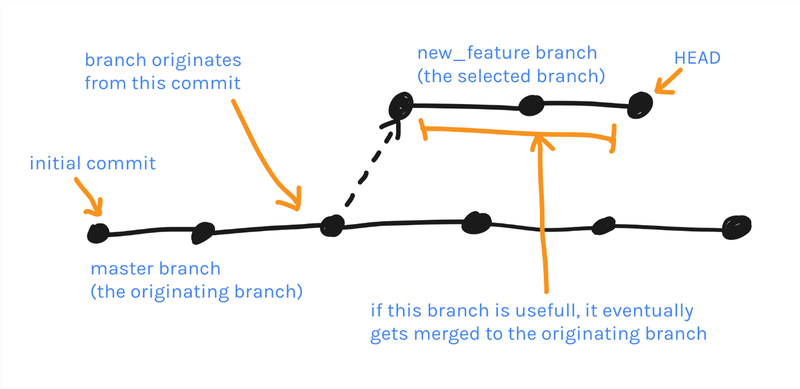
git branch <branch_name>
This creates the branch but does not switch to it.
Switch Branch
git checkout new_feature
This moves HEAD to the new branch.
Switching branches immediately updates the working directory.
Create and Switch in One Step
git checkout -b fix_bug_x
The new branch is created from the current branch.
Always switch to the correct base branch before creating a new one.
HEAD Behavior
HEAD always points to the latest commit on the current branch.
Branches with Uncommitted Changes
Switching branches requires a clean working directory.
Uncommitted changes may be overwritten.
Options before switching:
Discard changes:
git checkout -- <file>
Commit changes.
Or stash them.
Create a branch from a specific commit:
git checkout -b testing_something <commit_sha>
Comparing Branches
Compare branch tips:
git diff master..new_feature
More complex references are allowed:
git diff master^..new_feature~3
Branch names act as references to their latest commits.
Check Which Branches Are Merged
git branch --merged
Example output:
master
new_feature
* shorten_title
This indicates master and new_feature are fully merged into
shorten_title.
Renaming Branches
git branch -m new_feature seo_title
Deleting Branches
git branch -d branch_to_delete
Git checks:
- The branch is not currently checked out
- The branch is merged
Force deletion:
git branch -D branch_to_delete
Branches often end by merging back into their base branch. Temporary
branches can simply be deleted.
Merging Branches
Switch to the receiving branch first:
git checkout master
Then merge:
git merge new_feature
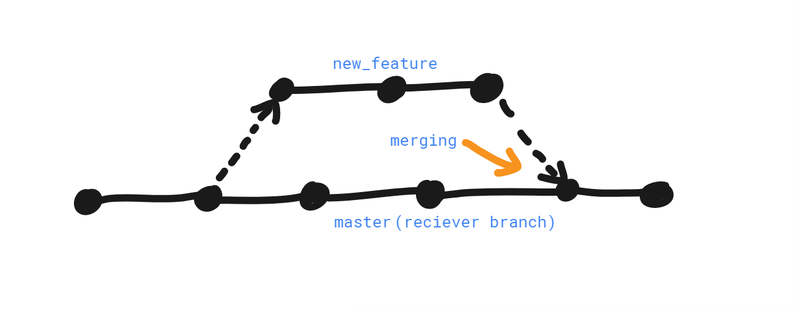
After merging, the branches may contain identical history.
git diff master..new_feature
This will return no differences.
The merged branch can then be deleted.
Always ensure the working directory is clean before merging.
Fast‑Forward vs True Merge
Fast‑Forward Merge
Occurs when the receiving branch has no new commits since the feature
branch diverged.
Git simply moves the branch pointer forward.
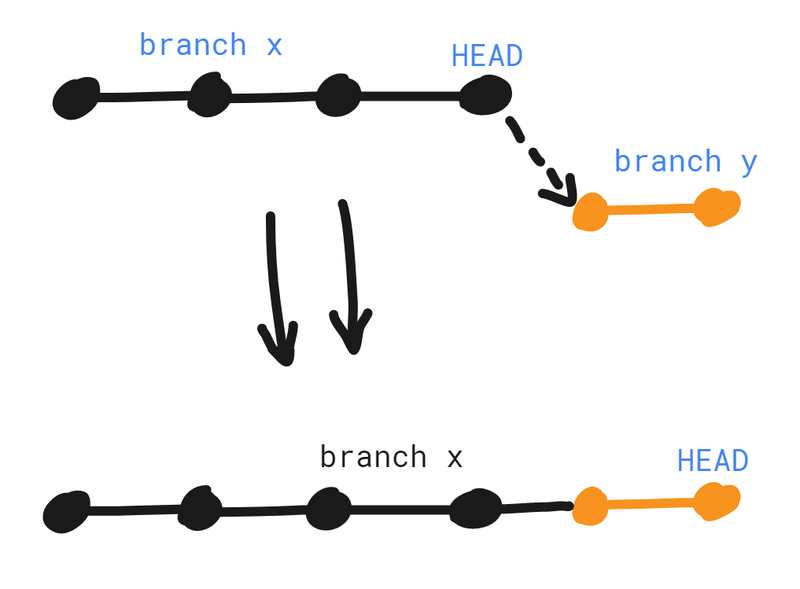
No merge commit is required.
To force a merge commit:
git merge --no-ff branch_name
True Merge
A real merge occurs when both branches have new commits.
Git creates a new merge commit combining both histories.
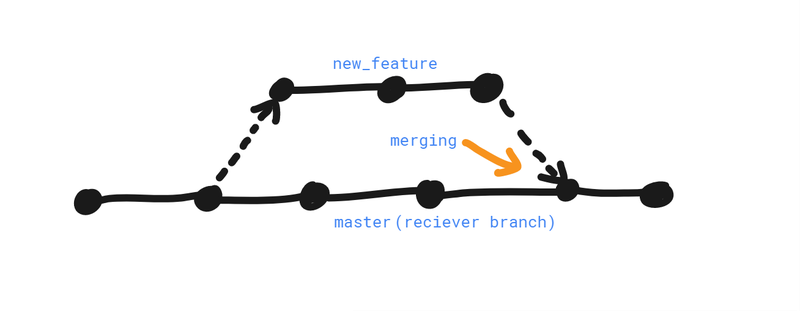
Command:
git merge new_feature
Git usually decides the appropriate merge strategy automatically.
Merge Conflicts
Conflicts occur when two commits modify the same line in a file.
Git cannot determine which change should win.
Manual resolution is required.
Resolving Merge Conflicts
When a conflict occurs, the shell prompt changes:
(master|MERGING)
Available actions:
- Abort the merge
- Resolve manually
- Use a merge tool
Abort the Merge
git merge --abort
Manual Resolution
Conflicting files contain markers:
<<<<<<< HEAD
changes from current branch
=======
changes from merged branch
>>>>>>> branch_name
Steps:
- Choose the correct change.
- Remove conflict markers.
- Commit the result.
git commit
Using Merge Tools
git mergetool --tool=<tool_name>
Most IDEs provide integrated conflict resolution tools.
Reducing Merge Conflicts
Recommended practices:
- Keep lines short.
- Keep commits small and focused.
- Avoid unnecessary whitespace changes.
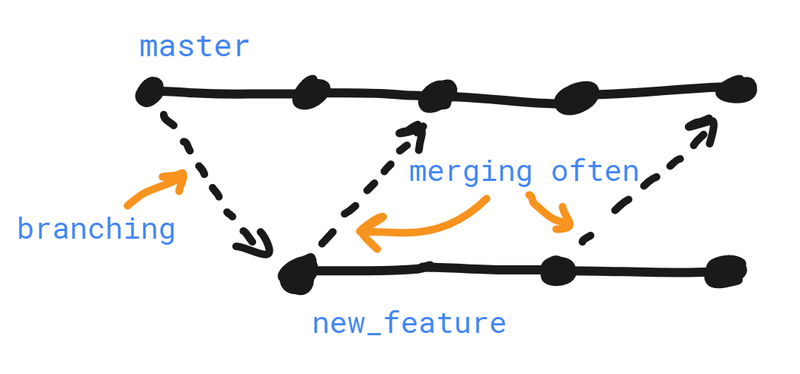
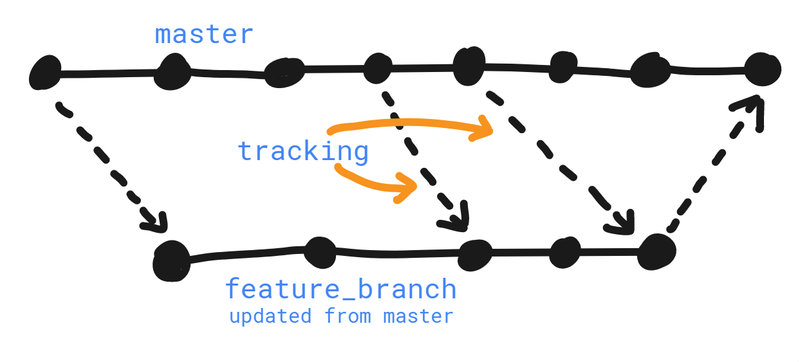
- Merge frequently.
- Keep feature branches updated with
master.
Notes:
- Branches can be created from any branch.
- Branches can be merged into any branch.
- A merged branch still exists until deleted.
- Work can continue on a merged branch.
Stashing
Stashing temporarily saves changes without committing them.
The stash is separate from Git's three main trees.
Stashed changes behave like commits but do not have hashes.
Typical use case:
- You have uncommitted changes.
- You need to switch branches.
- You are not ready to commit.
Creating a Stash
git stash save "message"
This stores changes from:
- Working directory
- Staging index
The working directory becomes clean.
Listing Stashes
git stash list
Example output:
stash@{0}: On master: trying to fix a bug
stash@{1}: On feature_branch: updating styles
Display stash changes:
git stash show -p stash@{0}
Retrieving Stashed Changes
Apply a stash:
git stash apply stash@{0}
Apply and remove the stash:
git stash pop stash@{0}
After applying a stash, the working directory contains changes again.
You can continue editing or create a commit.
Deleting Stashes
Delete a specific stash:
git stash drop stash@{0}
Remove all stashes:
git stash clear
Use caution when clearing the stash.
Member discussion: