
Raspberry Pi Button-Controlled YouTube Music Player
Here's what we're going to get.
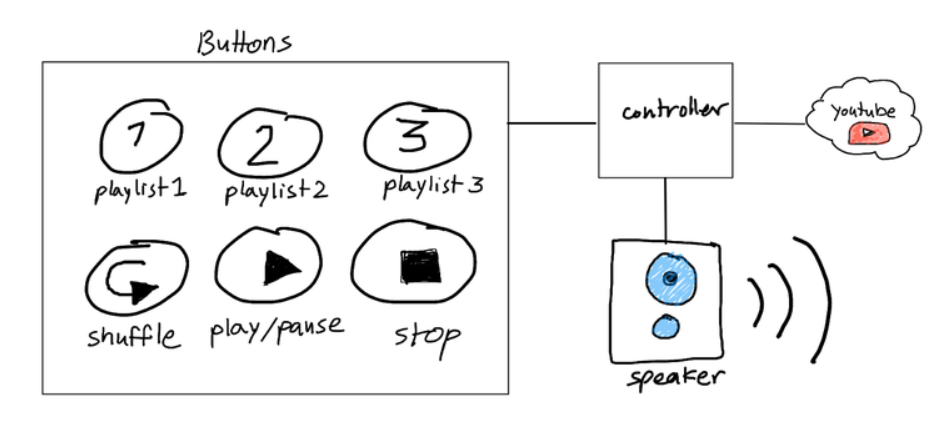
This article continues from the previous post about building a
push‑button panel. The button hardware is already prepared.
Required Hardware
- Raspberry Pi (any model)
- Internet connection
- Debian-based OS (tested with the latest Raspbian)
- Female header wires for GPIO connections
- Power adapter capable of 2A or higher
- AUX cable
- USB-powered speakers
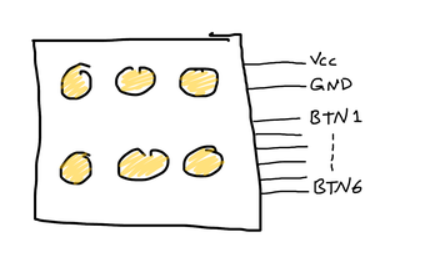
Interfacing the Button Panel
The button panel was previously designed with hardware debouncing
circuits.
Each button has its own debouncing circuit to eliminate noise from
tactile switches.
Connection to the Raspberry Pi is straightforward.
Power
VCC→ Raspberry Pi 3.3VGND→ Raspberry Pi Ground
Signal Lines
Each button connects to a GPIO input pin.
BTN1BTN2BTN3BTN4BTN5BTN6
Software
This implementation extends the structure introduced in the article:
Running Asynchronous Jobs with Push Buttons.
Dependencies
Ensure the following tools are installed and updated.
youtube-dl
youtube-dl is preinstalled on Raspbian but should be updated.
MPV Player
MPV is used for playback.
Reasons:
- Very lightweight
- Clean command line interface
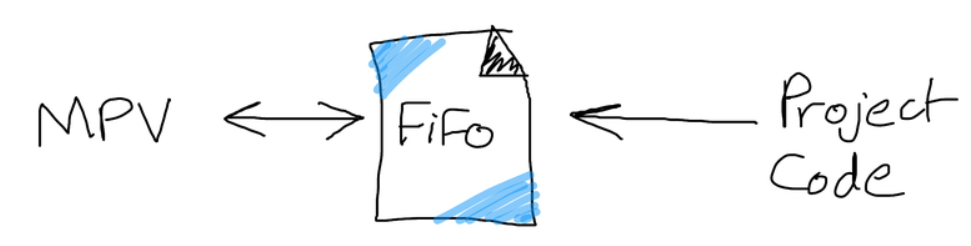
- Supports external control through FIFO pipes
The system communicates with MPV through a Linux FIFO file.
Implementation Overview
Python is used in this project, but any language capable of handling
GPIO interrupts and process control would work.
Button Behavior
Button Action
BTN1 Play Playlist 1
BTN2 Play Playlist 2
BTN3 Play Playlist 3
BTN1--3 (while playing) Stop playback
BTN4 Skip to next song
BTN5 Toggle Play/Pause
BTN6 Unused
Python Implementation
Imports
import RPi.GPIO as GPIO
import time
import subprocess
import signal
import os
import errno
GPIO Configuration
Disable warnings and select BCM pin numbering.
GPIO.setwarnings(False)
GPIO.setmode(GPIO.BCM)
Button Pin Mapping
BTN_1 = 18
BTN_2 = 17
BTN_3 = 27
BTN_4 = 23
BTN_5 = 22
Configuration Variables
FIFO_FILE_PATH = "/home/pi/Desktop/fifo"

YOUTUBE_PLAYLIST_1_URL = "https://www.youtube.com/playlist?list=xxxxxxxxxxxxxx"
YOUTUBE_PLAYLIST_2_URL = "https://www.youtube.com/playlist?list=xxxxxxxxxxxxxx"
YOUTUBE_PLAYLIST_3_URL = "https://www.youtube.com/playlist?list=xxxxxxxxxxxxxx"

ENABLE_VIDEO = False
ENABLE_SHUFFLE = True

LOG_FILE_PATH = "/home/pi/Desktop/log.txt"
GPIO Input Setup
GPIO.setup(BTN_1, GPIO.IN)
GPIO.setup(BTN_2, GPIO.IN)
GPIO.setup(BTN_3, GPIO.IN)
GPIO.setup(BTN_4, GPIO.IN)
GPIO.setup(BTN_5, GPIO.IN)
GPIO.setup(BTN_6, GPIO.IN)
MPV Communication (FIFO)
A FIFO file is used to send commands to MPV.
If the file exists from a previous execution, it must be removed first.
silentremove(FIFO_FILE_PATH)
subprocess.Popen(["mkfifo", FIFO_FILE_PATH])
Command Construction
get_mpv_run_command() generates the command used to start MPV.
Playlist Execution
exec_playlist() launches MPV with the playlist URL.
Button Callbacks
- BTN1--BTN3 → start playlist playback
- BTN4 → write
playlist-nextcommand to FIFO - BTN5 → write
cycle pausecommand to FIFO
Full MPV command list:
https://mpv.io/manual/master/#list-of-input-commands
Main Program Loop
The system relies on GPIO interrupt callbacks.
The main program only needs an infinite loop.
while True:
    time.sleep(1)
The program exits on KeyboardInterrupt (Ctrl+C) and terminates the
MPV process.
All logic resides in a single Python module.
main.py
The full implementation is available on GitHub.
Deployment
The script should run automatically at system startup.
Two common options:
- Cron jobs
- Desktop autostart
This implementation uses Desktop autostart.
Step 1 --- Create Autostart Directory
mkdir /home/pi/.config/autostart
Step 2 --- Create Desktop Entry
nano /home/pi/.config/autostart/main.py.desktop
Step 3 --- Add Configuration
[Desktop Entry]
Type=Application
Exec=/usr/bin/python /home/pi/main.py
Save and exit.
The program will now run automatically at boot.
Implementation Notes
Audio Noise
Connecting speakers directly to the Raspberry Pi 3.5mm audio jack
produced noticeable noise.
Attempts to resolve the issue:
- Driver updates
- Switching media players
The issue persisted.
Solution:
Use an external USB audio adapter.
This removed the noise and improved audio quality.
Button Debouncing
The system uses both hardware and software debouncing.
Hardware:
- RC filtering
- Schmitt trigger gates
Software:
bounce_time = 100ms
Adjust this value depending on the type of push buttons used.
YouTube Playlist Visibility
MPV can only access public playlists.
Ensure the playlist privacy setting is:
Public
Otherwise MPV cannot retrieve the playlist content.
Conclusion
This project demonstrates a simple hardware interface for controlling
streaming music with physical buttons.
The system is easily customizable.
Possible extensions:
- Volume control buttons
- Additional playlists
- OLED display for track info
- Bluetooth audio output
The button interface can control any software task supported by the
Raspberry Pi.
Member discussion: